
Advanced Zin Flow: How to Merge Multiple Articles into a Custom E-book
Get ZinFlow
Save web pages as e-books on iPhone, iPad, and Mac


ZinFlow’s core mission is to perfectly transform web content into EPUB e-books.
In addition to processing single articles, its powerful Library feature allows you to merge multiple high-quality pieces into a single export. This means you can freely combine articles captured at different times or from different sources to create a fully structured, customized e-book tailored to your needs.
This is perfect for:
- Thematic Reading: Merging 10 articles on the same topic (e.g., “AI Development” or “Cooking Techniques”) into a specialized volume.
- Series Tutorials: Organizing a series of articles scattered across different websites into their correct sequential order.
- Long-form Consumption: Merging long-running serial works to send to your Kindle for deep, immersive reading.
Step 1: Select Articles in Library
First, tap the Articles icon in the App’s bottom navigation bar to enter your collection list. In ZinFlow, the list supports multi-selection by default:
- Select Articles: Tap the checkboxes on the left of the articles. You can select multiple articles you wish to merge at once.
- Select All: If you want to export everything in the current category, simply tap Select All in the top-left corner.
- Start Export: Once selected, tap the Export (up arrow) icon in the top-right corner.
Tip: Choose Your Export Format After tapping Export, you can choose the format that suits your needs:
- Export as EPUB: This is the recommended method. You will proceed to the chapter organization workflow to generate a beautifully formatted e-book.
- Export as Markdown: Select this if you need to import content into knowledge bases like Obsidian or Notion. The system will directly output the article content as Markdown files and save them to the “Files” app. Note that Markdown export skips the chapter ordering and cover generation steps.
You can see the number of selected articles and their total size in the status bar at the bottom.
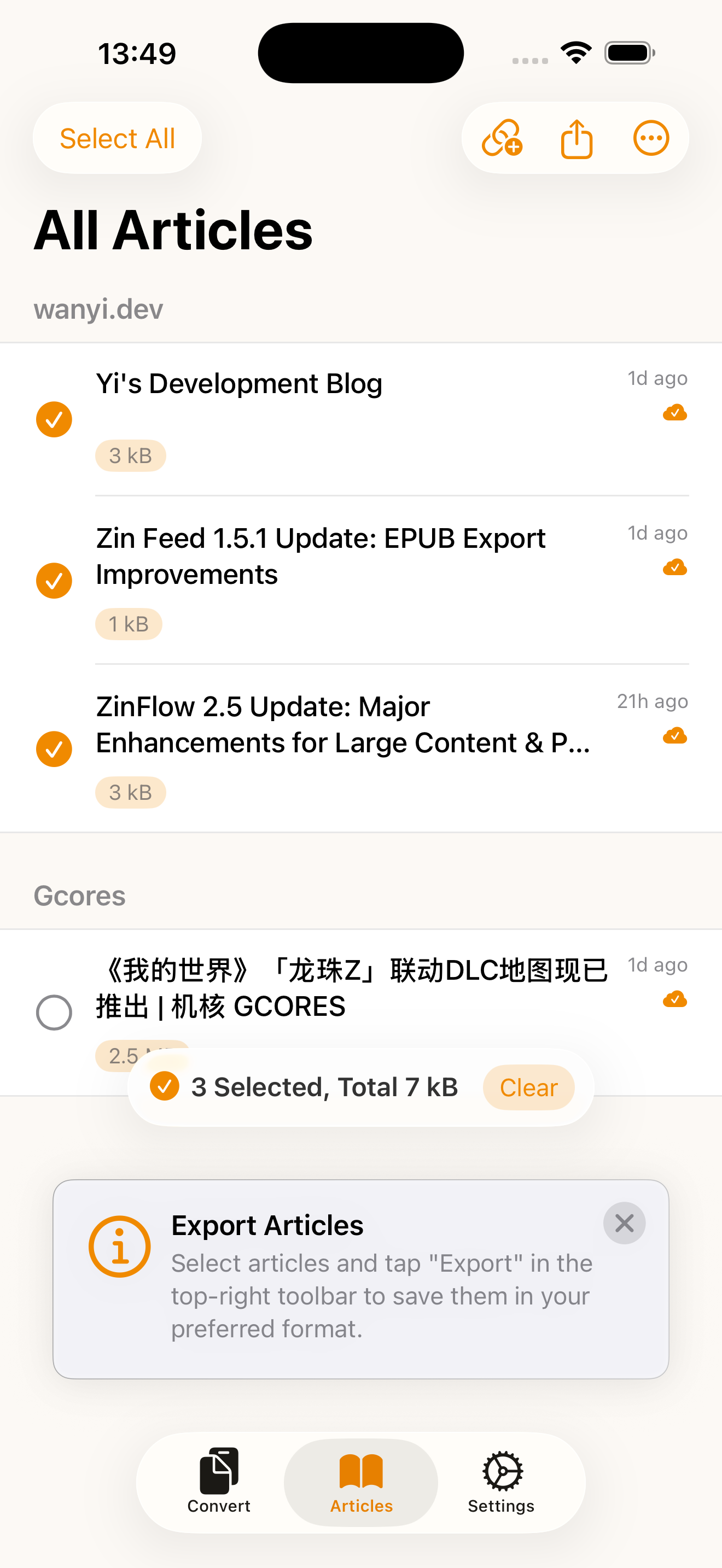 Figure 1: Select the articles you want to merge in the Library
Step 2: Organize & Edit Chapter Structure
After tapping export, you will enter the Chapter Organization page. This is the crucial step for creating your “Personal Collection.”
1. Adjust Reading Sequence
- Manual Drag: Hold and drag the three-line handle on the right of an article to move it up or down and adjust its position in the book.
- Reverse Order: Tap the dual-arrow icon in the top-right corner to flip the current chapter sequence. This is very useful for series: for example, you can quickly switch between “Chronological Order (best for tutorials)” and “Reverse Chronological Order (best for latest news).”
2. Remove Extra Chapters
- If you find you’ve selected an article by mistake, there’s no need to go back. Simply swipe left on the article in the list to remove it from the current export queue.
3. Edit Chapter Titles & Structure
- Flexible Editing: Tap any title to rename, and freely create or delete chapters to customize your table of contents as needed.
4. Grouped Preview
- If your articles are already grouped by Source, the system will automatically generate corresponding chapter headings for you, ensuring a clear table of contents.
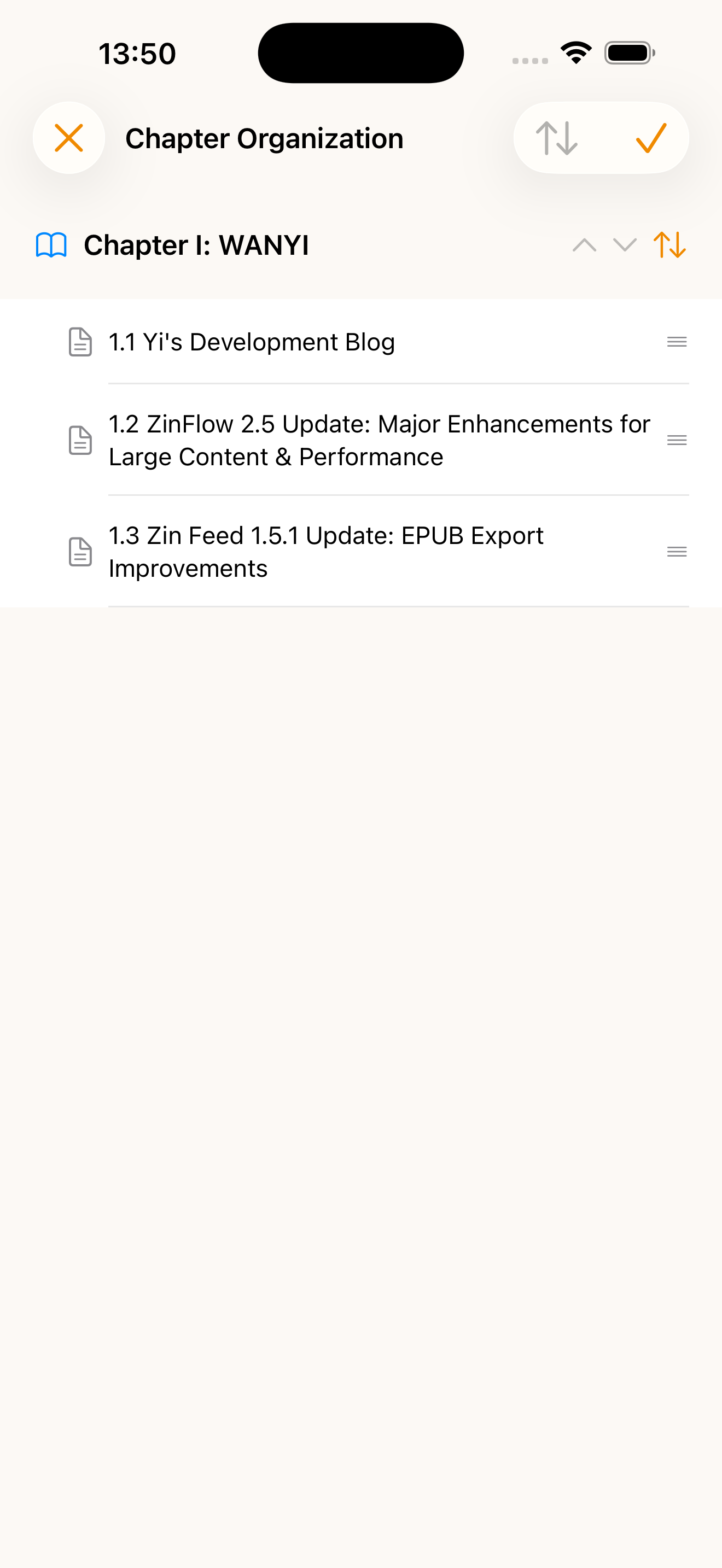 Figure 2: Organize the chapter structure, rename titles, and adjust the reading sequence
Step 3: Generate E-book
Once you are satisfied with the order, tap the Checkmark (Done) icon in the top-right corner. ZinFlow will begin the merging and generation process:
- Re-processing all image paths.
- Generating unified fonts and layout styles.
- Automatically building a standard Table of Contents (NCX).
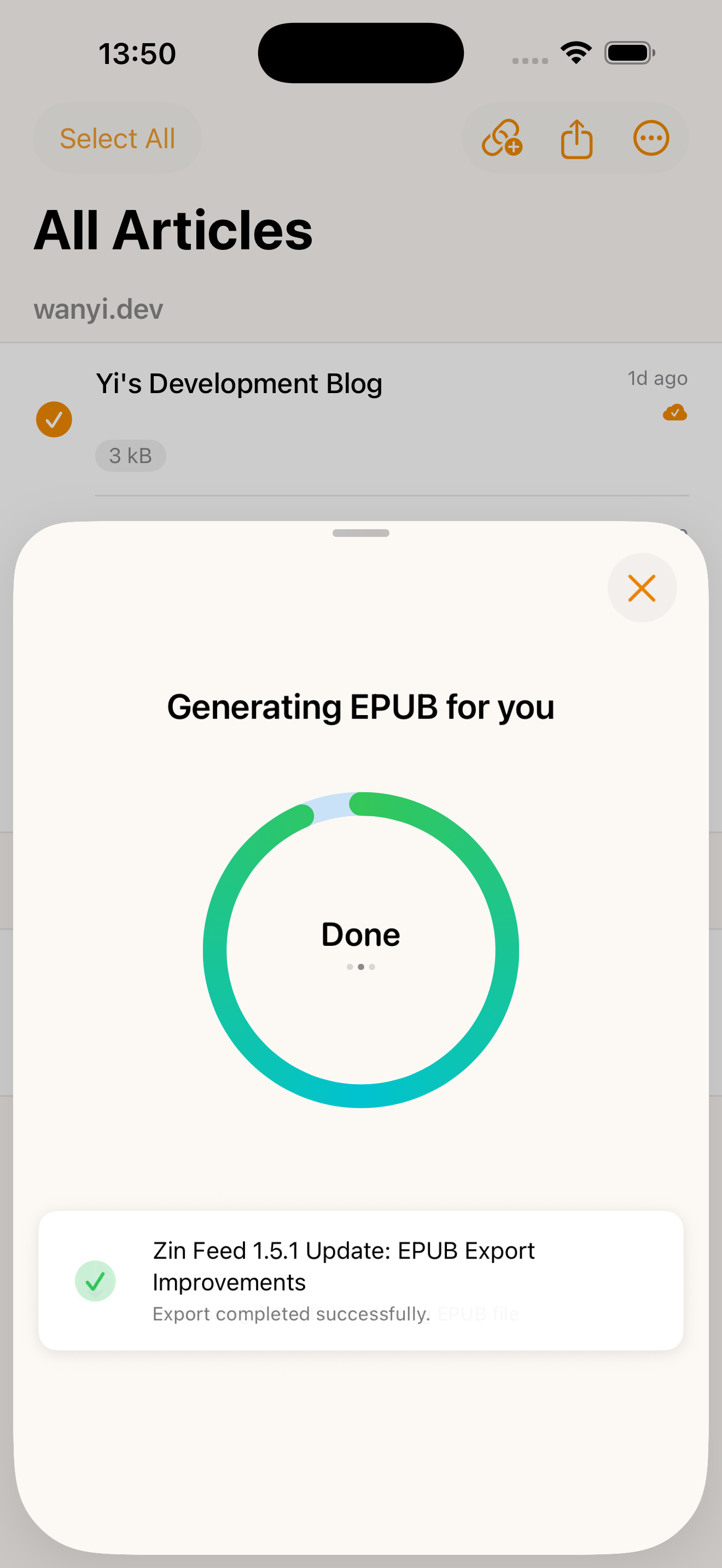 Figure 3: The system is generating your customized EPUB file
Step 4: Complete Export & Send
On the final export screen, you can perform final checks and actions:
1. Review Info & Cover
- Cover Generation: ZinFlow automatically scans all images in your selected articles and picks the most suitable one as the cover. If no suitable image is found, the system will select a beautiful solid-color cover. You can also tap the cover image to replace it with a custom picture from your photo library or files before exporting (v2.7+).
- You can also verify the generated title, author, and final file size.
2. Select Action
- Export eBook: Save the file to the system “Files” app or send it to other third-party readers.
- Send to Kindle: Push the book directly to your Kindle device via the email feature (file must be under 25MB).
3. Automated Cleanup
- Enable Archive article after action at the bottom. Once exported successfully, the original articles in the Library will be automatically moved to archives, keeping your Library tidy.
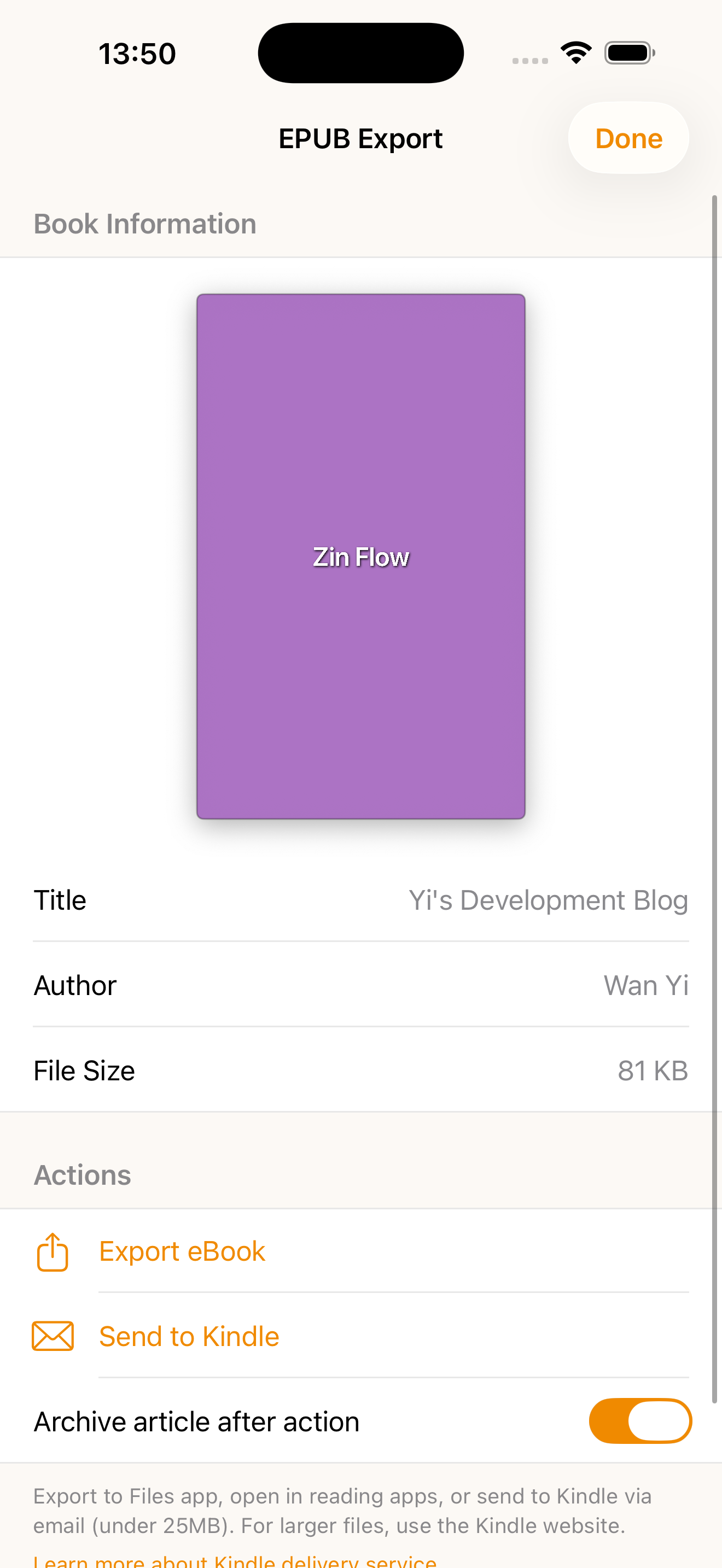 Figure 4: Preview book info and choose your saving or sharing method
Try It Now
Go to your Library now, pick a few favorite articles, and create your very first customized e-book!
- Go to Download: Download ZinFlow on the App Store
- Learn More: Back to ZinFlow Home
Ready to Build Your Digital Library?
Download ZinFlow today and start converting your favorite articles into beautifully formatted e-books.