
 DownMark for iOS
Turn Web Pages into Markdown
on iPhone and iPad
Capture a web page from Safari or any URL shared from another app, convert it to clean Markdown, and keep the result ready to preview, read later, sync, or export.

Features
DownMark for iOS turns Safari and the Share Sheet into a powerful Markdown capture tool. Save, organize, and export web content whenever inspiration strikes.
Capture from Safari or Share
Extract the current page only when you choose to save it.
Clean Markdown Conversion
Precision HTML-to-Markdown conversion preserving structure, links, and code.
Conversion Results Together
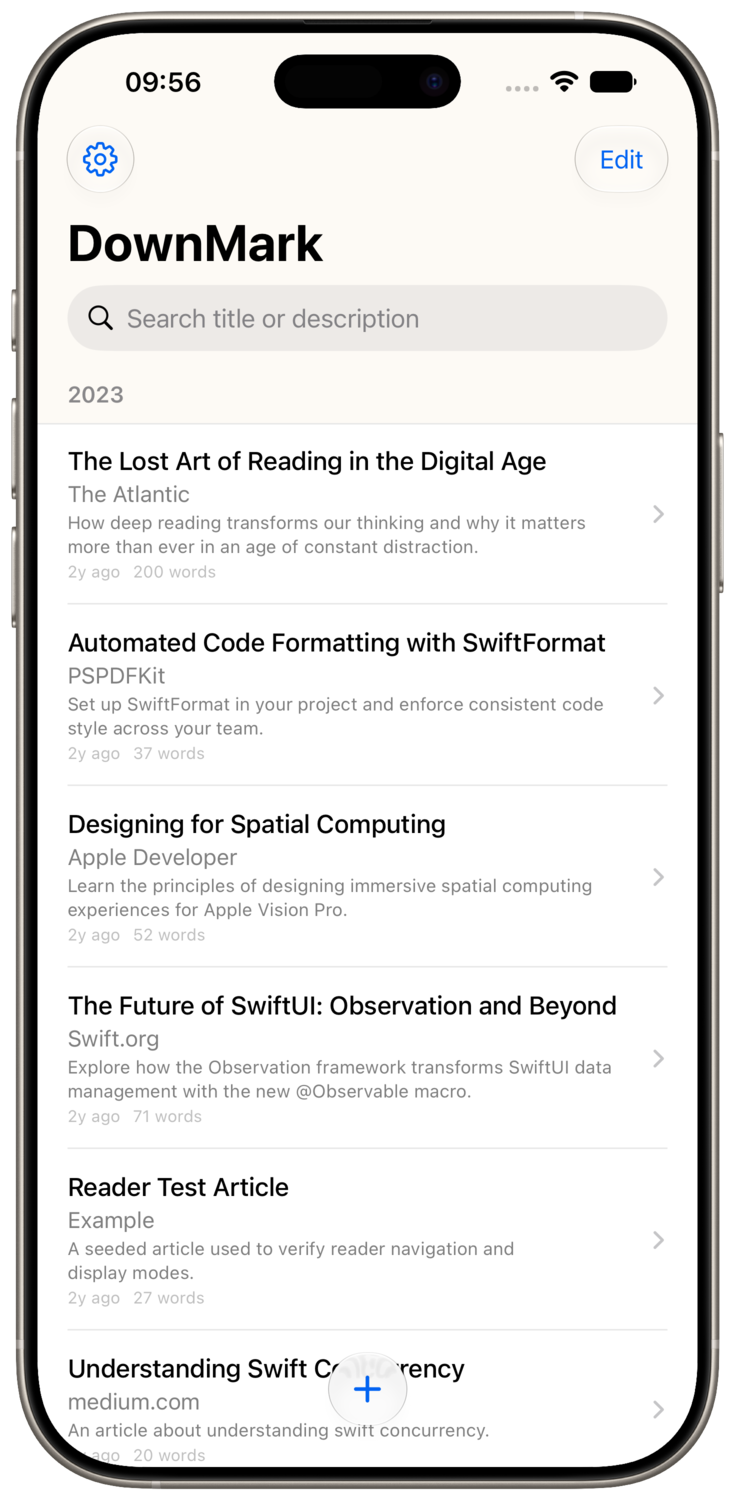
Search and manage the web pages you have converted in one place.
Save Now, Read Later
Open a clean reading view offline whenever you have time.
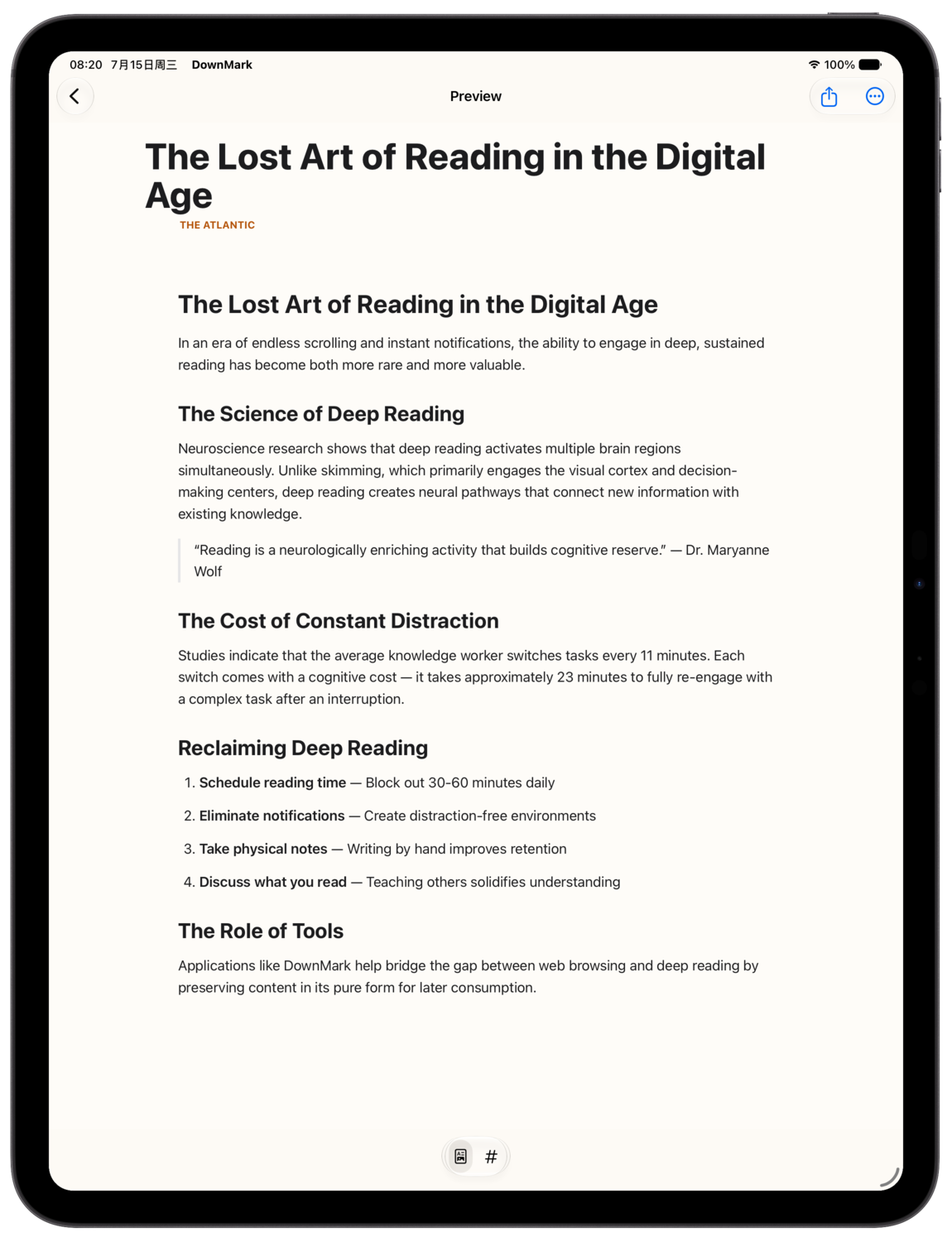
Preview or View Source
Switch between rendered Markdown and the original Markdown source.
Sync with iCloud
Keep converted results available across your iPhone and iPad.
Flexible Export
Export one Markdown file or package multiple articles as ZIP with Pro.
See DownMark for iOS in Action
From capture to export, every step is designed for a seamless experience


Frequently Asked Questions
Everything about DownMark for iOS
How do I capture a web page?
You can save a web page in three ways:
- Safari extension — Enable DownMark in Settings → Safari → Extensions and grant it access (recommend "All Websites"). Then tap the extensions button (🧩) in the Safari address bar field and choose DownMark. The extension extracts the page and saves it directly to your article library.
- Share extension — Tap the share button in Safari or any other app and choose DownMark. The page is loaded and extracted in the background.
- In-app import — Open the DownMark app, paste or type a URL, and the content is extracted automatically.
Is this a Read It Later app?
Read It Later is a natural benefit of saving Markdown results. When you convert a page, the content stays in the app where you can read it offline in a clean view. It is not a subscription feed reader — it is a conversion tool that also lets you read what you have saved.
What is the difference between Free and Pro?
The free version lets you save, preview, and read offline with no time limit or usage cap — you can use it forever. Exporting is limited to one article at a time, and exported Markdown files include a subtle watermark. Pro is a one-time purchase that grants lifetime access: batch ZIP export and no watermarks on exported files.
Does DownMark for iOS sync across devices?
Yes. When iCloud is available on your device, saved results can sync through your iCloud account, keeping them accessible across your iPhone and iPad.
How does exporting work?
Single articles export as standard Markdown files. With Pro, you can select multiple articles and export them together as a ZIP archive, each as an individual Markdown file.
Do I need to buy DownMark for Mac as well?
DownMark for Mac and DownMark for iOS are separate apps with separate purchases. They serve different workflows: Mac saves files directly to your computer, while iOS keeps everything inside the app for mobile use. DownMark for Mac is a paid download — you buy it once and own it. DownMark for iOS is free to download with a one-time in-app purchase to unlock Pro features.