
ZinFlow Guide: How to Save Web Pages as E-books with One Click
Get ZinFlow
Save web pages as e-books on iPhone, iPad, and Mac


Do you often come across long-form articles worth re-reading while browsing social media or deep blogs?
Simply “bookmarking” links often leads to “never looking back,” and web links can expire at any time. ZinFlow’s core mission is to help you transform these scattered web information into beautifully formatted EPUB e-books with one click. This allows you to:
- Offline Reading: Stay immersed in knowledge even in environments without internet, such as long flights or subways.
- Multi-device Support: Send your favorite articles to Kindle, Kobo, reMarkable, or BOOX, or enjoy a paper-like, eye-friendly experience directly on your iPad (the preferred reading device for many).
- Permanent Preservation: Store content locally so you no longer have to worry about the original web page being deleted or inaccessible.
To ensure you can “grab” content most efficiently across different devices, ZinFlow provides various saving tools. This guide will help you choose the most suitable saving method based on your current scenario.
Core Concept: Which Method Should I Use?
Before you begin, please understand the core difference between the two types of extensions:
| Feature | Browser Extension (Safari/Chrome) | System Share Extension |
|---|---|---|
| Main Principle | Directly captures pages locally in the browser (reuses your login status) | Submits the URL to the App background for parsing (equivalent to browser “Incognito mode”, only accesses public content) |
| Key Advantage | Can save content that “requires login” or is “member-only” | Extremely fast operation, supports forwarding from any App* |
| Use Case | Columns, member articles, web pages with complex layouts | Daily news, blogs, Twitter links, etc. |
*Note: The System Share Extension currently only supports sharing "Web Links (URLs)". If you share plain text, images, or files, ZinFlow will not be able to identify or parse them.
1. Using on iPhone and iPad
On mobile, we have prepared two weapons for you:
1. Safari Browser Extension (Highly Recommended)
This is the “ultimate solution” for saving articles as it solves 90% of parsing issues.
- Why use it: If you are already logged into a website in Safari (e.g., Caixin, Zhihu, Medium), the browser extension can directly reuse your login status to capture full member content.
- How to enable:
- Open the Safari browser.
- Tap the “Extension Management” icon in the address bar (usually shown as a puzzle piece 🧩).
- Select “Manage Extensions” from the popup menu.
- Find ZinFlow and turn it on.
- Tap the icon again and ensure ZinFlow access permissions are set to “Always Allow”.
- How to use: While reading an article, simply tap the ZinFlow icon in the Safari toolbar. A processing prompt will appear on the page, and the article extraction and saving will be completed automatically.
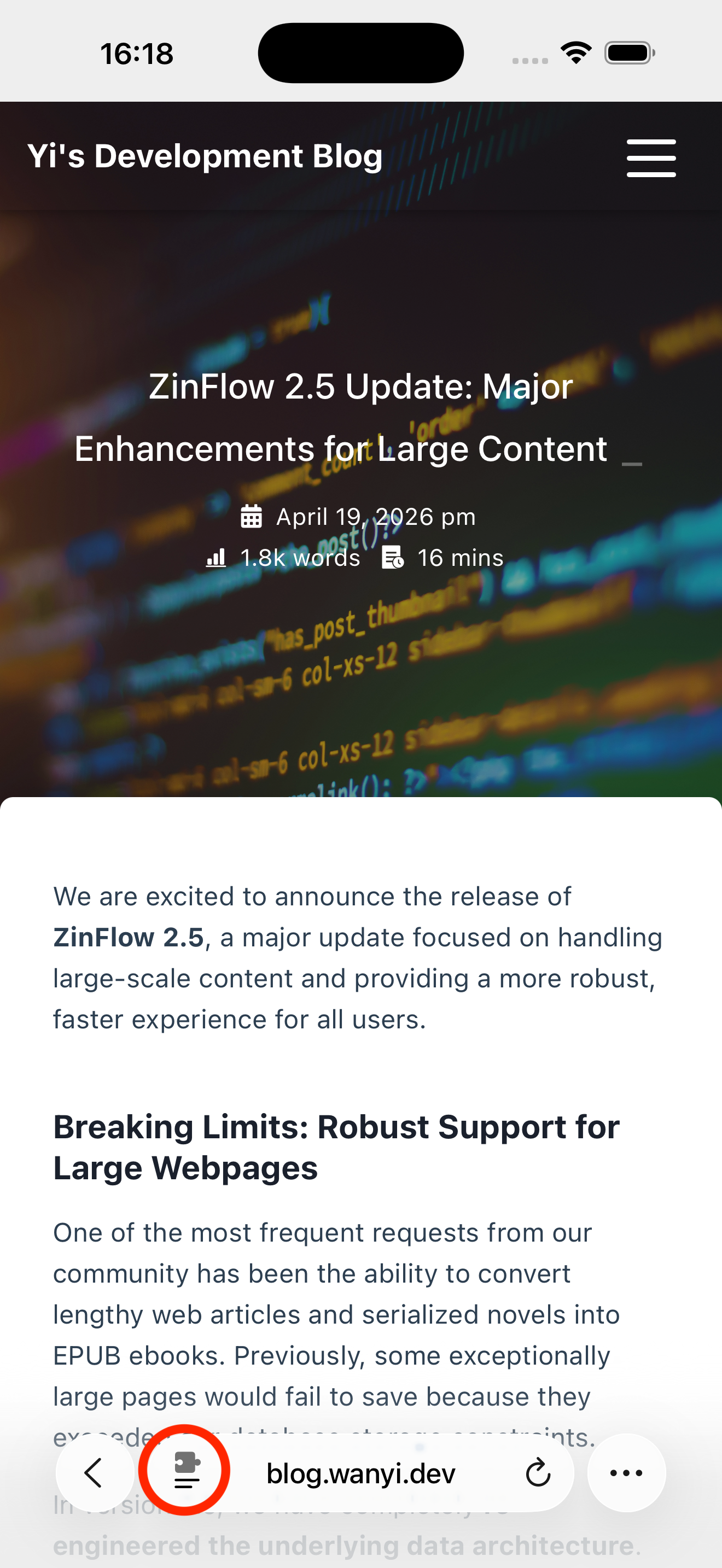 Figure 1: Enabling ZinFlow extension in Safari menu
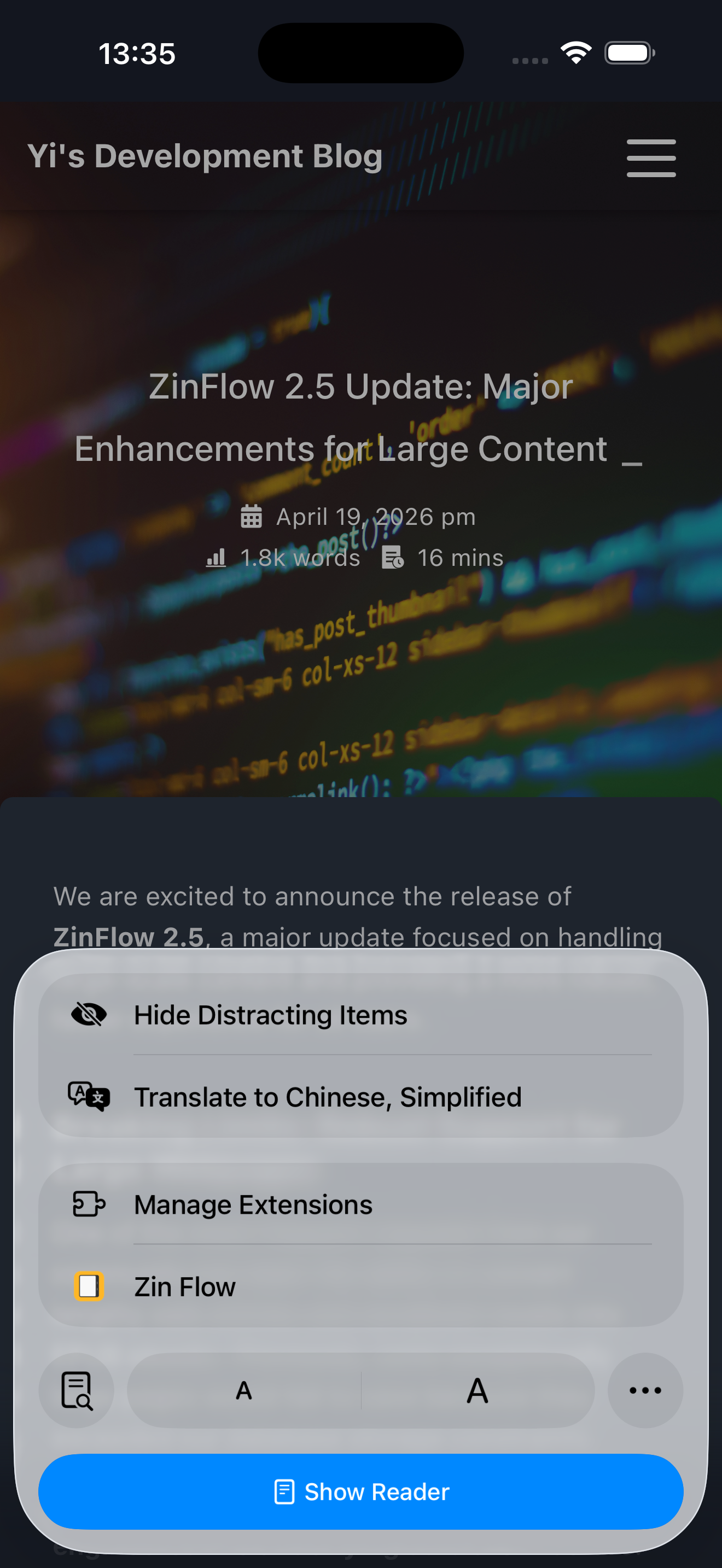 Figure 2: Tap the ZinFlow icon in the Safari menu to start saving
2. System Share Extension
- Why use it: When you see a good link in WhatsApp, X (Twitter), Slack, Threads, or Mastodon and other Apps, you don’t need to copy the link and then open Safari.
- How to enable: Tap the system “Share” icon, find and tap “ZinFlow” in the application list.
- Note: Since it uses background parsing, if a web page requires login to view the full text, it might only be able to capture the preview portion.
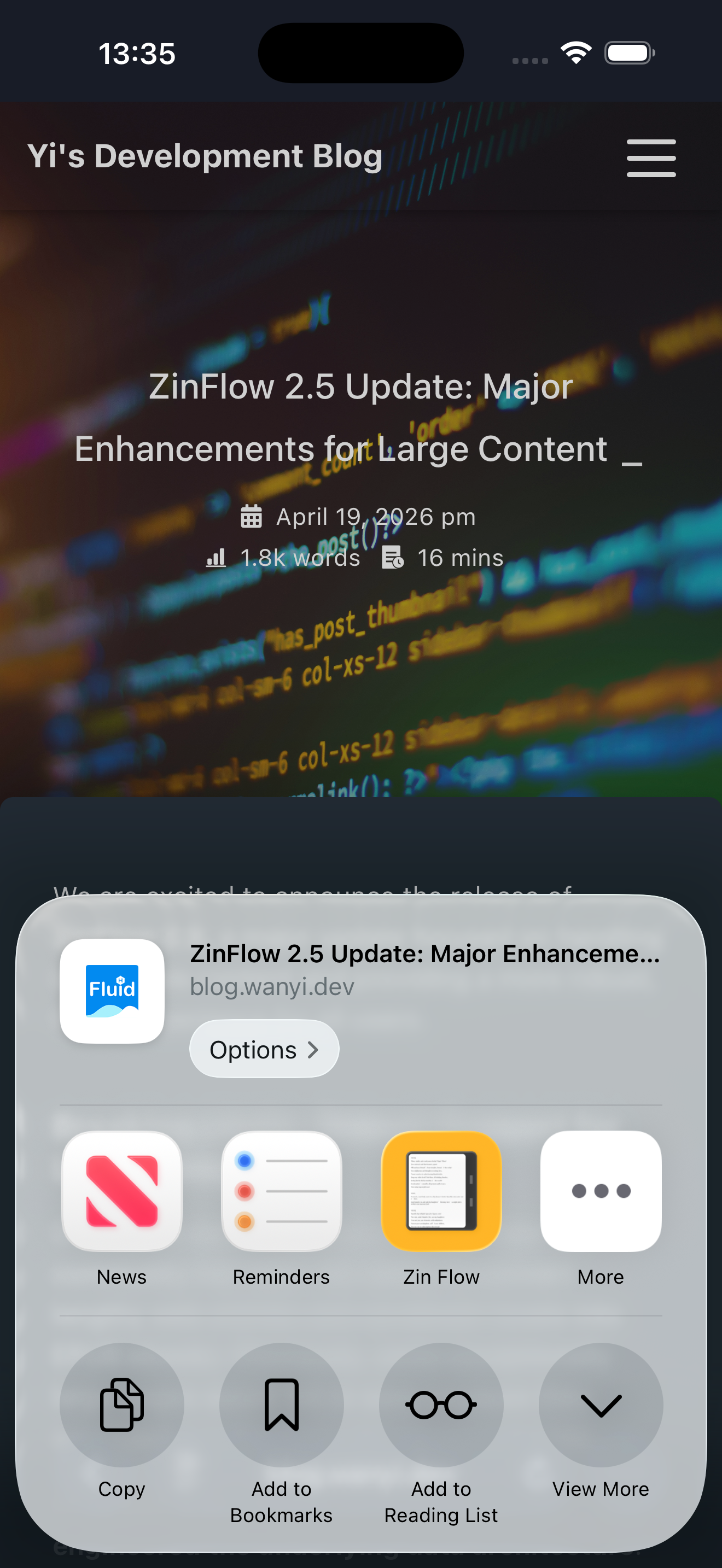 Figure 3: Selecting ZinFlow in the iOS system share menu
2. Using on Mac
On the computer, you can choose different browsers according to your habits:
1. Safari Browser Extension
- Features: Native integration, best performance. The extension is installed automatically with the App, no additional download required.
- How to enable:
- Open the Safari browser.
- Go to the “Settings” > “Extensions” tab.
- Check ZinFlow in the left list to enable it.
- You can adjust the ZinFlow icon to a convenient position via “Customize Toolbar”.
- How to use: While browsing any web page, click the ZinFlow icon in the toolbar to save the article to your library with one click.
2. Chrome Browser Extension
- Features: Suitable for users who prefer using the Chrome browser.
- Key Steps:
- Install: Go directly to the Chrome Web Store to install.
- Connect Extension: Open the “Connect Chrome Extension” page in the ZinFlow desktop client, get the connection code, and enter it into the plugin.
- Why is connection necessary? As a native component, the Safari extension can use the system’s built-in iCloud capability for data interconnection; the Chrome extension, however, needs to jump through our relay server for instruction transfer. Rest assured, the relay server does not collect or store any of your personal data. The entire process is only used to achieve data synchronization and ensure your privacy and security.
3. Summary: Scenario Recommendations
| Your Situation | Recommended Tool |
|---|---|
| Reading web pages/paid columns in browser (Best Practice) | Safari or Chrome Browser Extension |
| Browsing in third-party Apps (WhatsApp, X, Slack, Threads, etc.) | System Share Extension |
| Manually copied a URL and want to enter it quickly | Add directly in ZinFlow App |
Frequently Asked Questions
Why is the saved content incomplete or missing images?
This usually happens for two reasons:
- Login Required: If an article is behind a paywall or requires a login, please ensure you are logged in within Safari or Chrome and use the Browser Extension to save. This allows the extension to capture the full content as you see it.
- Dynamic Loading (Pro Tip): Many modern websites load images and content only as you scroll down. If you find images missing, try scrolling to the bottom of the page to ensure everything is loaded before clicking the ZinFlow extension icon. This “small trick” ensures the extension captures the most complete version of the page.
How do I read saved articles on other devices (Kindle, iPad, etc.)?
Once an article is saved, it will appear in your ZinFlow app library. You can read it directly within the ZinFlow app, or use the “Export” feature to generate a standard EPUB file. You can then use the system share menu to send the e-book to your Kindle (via “Send to Kindle”), Kobo, reMarkable, or iPad via email or AirDrop.
Why does the Chrome extension need a “Connection Code” while Safari doesn’t?
This is because the Safari extension, as a native component of the system, can directly utilize iCloud for data synchronization. Chrome, being a third-party environment, must complete instruction transmission through our secure relay server. We promise that this process does not collect or store any user privacy data.
Start Your Digital Reading Journey Now
ZinFlow supports iPhone, iPad, and Mac, and all your articles and e-books will be automatically synchronized across all devices.
- Go to Download: Download ZinFlow on the App Store
- Learn More: Back to ZinFlow Home
Ready to Build Your Digital Library?
Download ZinFlow today and start converting your favorite articles into beautifully formatted e-books.