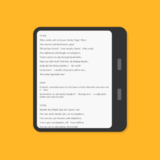
See Zin Flow in action—watch how it captures web articles and converts them into beautifully formatted EPUB files with a single click.
Powerful Features
Transform your web reading experience with comprehensive tools for content extraction, organization, and format conversion.
HTML to EPUB
Convert web articles, HTML pages, and website URLs into well-formatted EPUB eBooks with automatic formatting and chapter generation.
Library Feature
Save URLs to your Library with sortable views, timeline grouping, and batch operations. Virtual select-all handles thousands of articles effortlessly.
Safari Extension
Save articles directly from Safari to your Library with one click, no app switching required.
Chapter Editor
Freely edit titles, add or delete chapters to build a personalized e-book structure during export.
EPUB Cover Customization
Change the cover image before export to make your eBook stand out on your bookshelf.
Book Metadata Editing
Edit title, author, language, publication date, and publisher before exporting your EPUB.
Markdown Export
Convert web content to Markdown format, perfect for local knowledge bases and AI model analysis.
iCloud Sync
Seamless synchronization between iOS and Mac versions, keeping your Library consistent across all devices.
Offline Mode
Cache article content and images for offline access without internet connection. (Pro users only)
Chrome Extension Support
Chrome browser extension enables data synchronization between browser and app for convenient cross-platform content collection.
Article Tagging
Add custom tags with smart suggestions, filter by read/archived status, and see tag changes reflected instantly across your Library.
Library Search
Powerful search with tag, source, and keyword filters pushed to the database layer for instant results. Supports combined conditions and swipe-to-delete.
Frequently Asked Questions
Find answers to common questions about Zin Flow's web-to-EPUB conversion, library management, and premium features.
What is Zin Flow and how does it work?
Getting started is simple:
1. Safari extension (recommended): Browse as usual and save articles to your Library with one tap
2. URL input: Paste any article link directly into the app
3. Share sheet: Share a URL from any app using the share extension
Once saved to your Library, select multiple articles and export them as a single, beautifully formatted EPUB e-book — complete with chapters, cover, and metadata, ready for Kindle, Apple Books, or any e-reader.
📖 Step-by-step guide: Save web pages as e-books with one click →
Can I convert HTML to EPUB?
Why choose EPUB format for e-books?
Does Zin Flow support multiple devices?
What kind of content works best with Zin Flow?
How does the Chrome extension work? Can Windows users use Zin Flow too?
This means Windows users can now seamlessly use Zin Flow's core features!
How it works:
1. Install the Zin Flow extension in Chrome browser on your Windows PC
2. Browse the web in Chrome and click the extension button when you find an article to save
3. The extension syncs the article through the cloud to your Zin Flow app on your phone/iPad
4. Open Zin Flow on your mobile device - the article is already in your Library
5. Convert articles to EPUB e-books anytime, anywhere on your mobile device
What this means for Windows users:
• Cross-platform breakthrough: No Windows app needed - use core features through the browser extension
• Seamless integration: Collect content in your familiar Chrome browser environment
• Mobile reading: Perfect combination of collecting on PC and reading on mobile/tablet
• Just one device needed: Only need to install Zin Flow app on your phone or iPad
Key advantages:
• Solves the limitation of no native Windows app
• Lets Windows users enjoy Zin Flow's powerful content conversion features
• Takes full advantage of PC browsing convenience and mobile reading comfort
• Seamless data connection across all devices through iCloud sync
Use cases:
• Collect materials at office PC, read on phone during commute
• Research topics at home PC, organize into e-books on tablet
• Any content collection and reading scenario requiring cross-device collaboration
What is the Library feature and how do I use it?
The Library feature is especially useful for:
1. Collecting multiple articles on related topics and exporting them as an organized e-book
2. Saving quality content you discover for reading later
3. Organizing multiple serial articles in the correct order to form a complete work
When exporting, you can customize the chapter structure and order of articles for a personalized reading experience.
📖 Learn how to merge multiple articles into a custom e-book →
Can I customize chapter titles and structure when exporting?
What you can do:
1. Rename chapters and sections — Directly edit any chapter or section title before exporting
2. Create new chapters — Add empty chapters to better organize your content
3. Delete unwanted sections — Remove sections you don't need
4. Hierarchy protection — Deleting a sub-section preserves the parent chapter, so your planned structure stays intact
On Mac, you can also double-click any title or press the Return key to quickly rename, and use the right-click menu or Delete key for fast management.
📖 Full chapter editing guide →
Can I customize the EPUB cover before exporting?
Before exporting your EPUB, you can change the cover image to make your eBook truly your own. Here's how:
How to change the cover:
1. Select the articles you want to export
2. Tap the export button and proceed through the chapter organization page
3. On the final export screen, tap the cover image area
4. Choose a new image from your photo library or files
5. The new cover will be applied to your EPUB
If you don't set a custom cover, Zin Flow will automatically scan your articles and select the most suitable image as the cover.
📖 Full cover and export guide →
Can I edit book metadata before exporting?
Before exporting your EPUB, you can edit the following book information:
Editable metadata fields:
1. Title — Customize the book title as it appears in your e-reader's library
2. Author — Set the author name for proper attribution
3. Language — Set the language metadata for better reader compatibility
4. Publication Date — Add a publication date to your eBook
5. Publisher — Set the publisher name
How to edit metadata:
1. Select articles and tap export
2. On the final export screen, tap the info/edit icon
3. Modify the fields you want to update
4. The changes will be embedded in the EPUB metadata
📖 Full metadata and export guide →
How does the article tagging feature work?
How to use:
1. Select any article in your Library and tap the tag button to enter the tag management interface
2. Smart recommendations: The system automatically extracts keywords from the original webpage's meta tags as recommended tags
3. You can choose to use the recommended tags or create custom tags
4. Add multiple tags to a single article for more precise categorization
5. Tags can be reused across different articles once created
Smart recommendation advantages:
• Automation: No need to manually input common tags, saving time
• Accuracy: Based on the original webpage's keyword information, tags are more relevant to the content theme
• Flexibility: Recommended tags are for reference only, you can freely choose or modify them
Overall tag advantages:
• Quickly filter and find articles by topic
• Works with search functionality to improve content retrieval efficiency
• Create personalized content classification systems
• Enhance the organization and manageability of your Library content
What search methods are supported by the Library search feature?
Supported search methods:
1. Title search: Search by keywords in article titles
2. Description search: Search for keywords in article descriptions
3. Tag search: Find related articles through tag names
4. Source filter: Filter by article source/domain
5. Combined search: Use multiple criteria simultaneously for precise targeting
Search tips:
• Using accurate keywords yields better search results
• Both Chinese and English keywords are supported
• Search results are sorted by relevance
• Combined with tags, you can locate target content faster
How can I save content from websites that require login?
Recommended: Safari Extension + System Browser (Best Practice)
1. Log in to websites normally in Safari or your preferred system browser
2. Navigate to the article page you want to save
3. Use Zin Flow's Safari extension to save it to your Library with one tap
Safari Extension advantages:
• Seamless experience: Use your familiar system browser with native browsing experience
• Better compatibility: Supports all website login mechanisms and interactive features
• More convenient: No app switching required, one-tap saving
• Auto-login: Leverages your browser's saved login state
How does iCloud sync work? Do I need to set it up?
This feature is enabled by default and requires no additional setup. As long as your devices:
1. Are signed in with the same Apple ID
2. Have iCloud enabled
3. Have iCloud access enabled for Zin Flow
If you don't want to use this feature, you can disable iCloud for Zin Flow in your device's system settings.
What is the difference between HTML and EPUB?
What's the difference between free and pro versions?
1. Generated e-books will have watermarks
2. Maximum of 10 total trial exports (once used up, exports are disabled)
3. An in-app purchase prompt will appear before each conversion
Upgrading to the Pro version removes all limitations and lets you fully use all features, including unlimited Library capacity, iCloud sync, and Offline Mode. Offline Mode allows paid users to cache article content and images for access anytime without an internet connection.
The Pro version supports one-time purchase as well as monthly/yearly subscriptions. A subscription lets you continue receiving new features and ongoing support.
Why don't I see in-app purchase options when first opening the app?
The solution is simple:
1. Allow network access permission
2. Fully close the app (remove from background tasks)
3. Reopen the app
After restarting the app, the in-app purchase and subscription options should display correctly. This usually only happens after the first installation and won't recur after authorizing network access.
Can I send e-books directly to my Kindle?
For iOS users:
1. Install the official Kindle App on your iPhone/iPad
2. When exporting EPUB in Zin Flow, choose to share with the Kindle App
3. The Kindle App will automatically sync the document to all your Kindle devices
For Mac users:
1. Export the EPUB file to your local storage
2. Upload the document via Amazon's official Send to Kindle website (https://www.amazon.com/sendtokindle)
3. The document will automatically be pushed to all your Kindle devices
Common advantages of these methods:
• More stable and reliable transfer, not limited by email services
• More generous file size limits
• Avoids attachment parsing issues with iCloud Mail Drop functionality
• Avoids various instability issues when sending large file attachments via email in background
Of course, you can still use the email sending feature by configuring your Kindle email address in the app settings, but we strongly recommend using the above methods.
📖 Complete EPUB export and Kindle guide →
Does Zin Flow work offline?
Basic usage still requires an internet connection to fetch web content, but pro users can now use the offline mode:
• When enabled, the system caches article content and images
• Access cached content anytime, even without an internet connection
• Library interface now shows offline cache file sizes for storage management
• Mac version also supports direct viewing of cached articles
Storage Limit Information:
• Offline mode is subject to storage space limits to prevent excessive device storage usage
• You can adjust the maximum offline cache storage capacity in the app's settings page
• When the cache approaches its limit, the system automatically cleans up older or less frequently accessed content
• We recommend regularly reviewing and cleaning up unnecessary offline content to maintain reasonable device storage usage
Note: Initial conversion and saving articles to the Library still requires internet connection, but once offline mode is enabled, you can access this content within the storage limits.
Why am I seeing "Storage Limit Reached" in Offline Mode?
Offline Mode includes a configurable storage limit to prevent unintentionally caching too many articles and occupying excessive device storage. By default, it's set to 500 MB, but you can change it at any time.
How to resolve it:
Open Settings → Offline Mode → Offline Content Storage Limit, then either:
1. Increase the storage limit according to your available device space
2. Remove offline content you no longer need
This setting only controls local offline storage and does not affect your Pro features or subscription benefits.
Why do Chinese or East Asian characters display inconsistently on my Kindle?
The recommended solution is to install your preferred compatible font in the /fonts directory of your Kindle device. This approach gives you control over which font to use while keeping the EPUB file size manageable.