
How to Save Multiple Web Articles at Once in Safari on iPhone
Get ZinFlow
Save web pages as e-books on iPhone, iPad, and Mac


Opening every interesting link one by one can turn a useful reading list into dozens of Safari tabs. ZinFlow v2.9 makes this easier: its Safari extension can find article links already present on the current page, let you choose the ones you want, and save them to your library together.
This works especially well on news homepages, topic pages, author archives, and articles that link to more stories from the same site. The discovered items come from links on the page you are viewing; they are not AI-generated recommendations.
Before You Begin
You will need:
- ZinFlow v2.9 or later on your iPhone or iPad.
- The ZinFlow Safari extension enabled with permission to access the current website.
- A public page containing links to other web articles.
This guide focuses on the iOS version (iPhone / iPad); the macOS version works in a similar way.
If you have not enabled the extension yet, follow the ZinFlow browser extension setup guide first.
Batch-Save Related Articles from Safari
Step 1: Open a Page That Contains Multiple Articles
In Safari, open a news homepage, topic page, author archive, or an article with a list of related stories. The page just needs to load normally; ZinFlow does not run automatically when you open a webpage.
Step 2: Open the ZinFlow Safari Extension
Open Safari’s extension menu and select ZinFlow. This is when ZinFlow inspects the article links already visible on the page. The panel shows the current page first and, when matching links are available, a section such as Found 47 similar articles.
The current page is selected by default, so you can add it to your library directly. If you also want to save other similar articles discovered on the page, expand the list and check the ones you want.
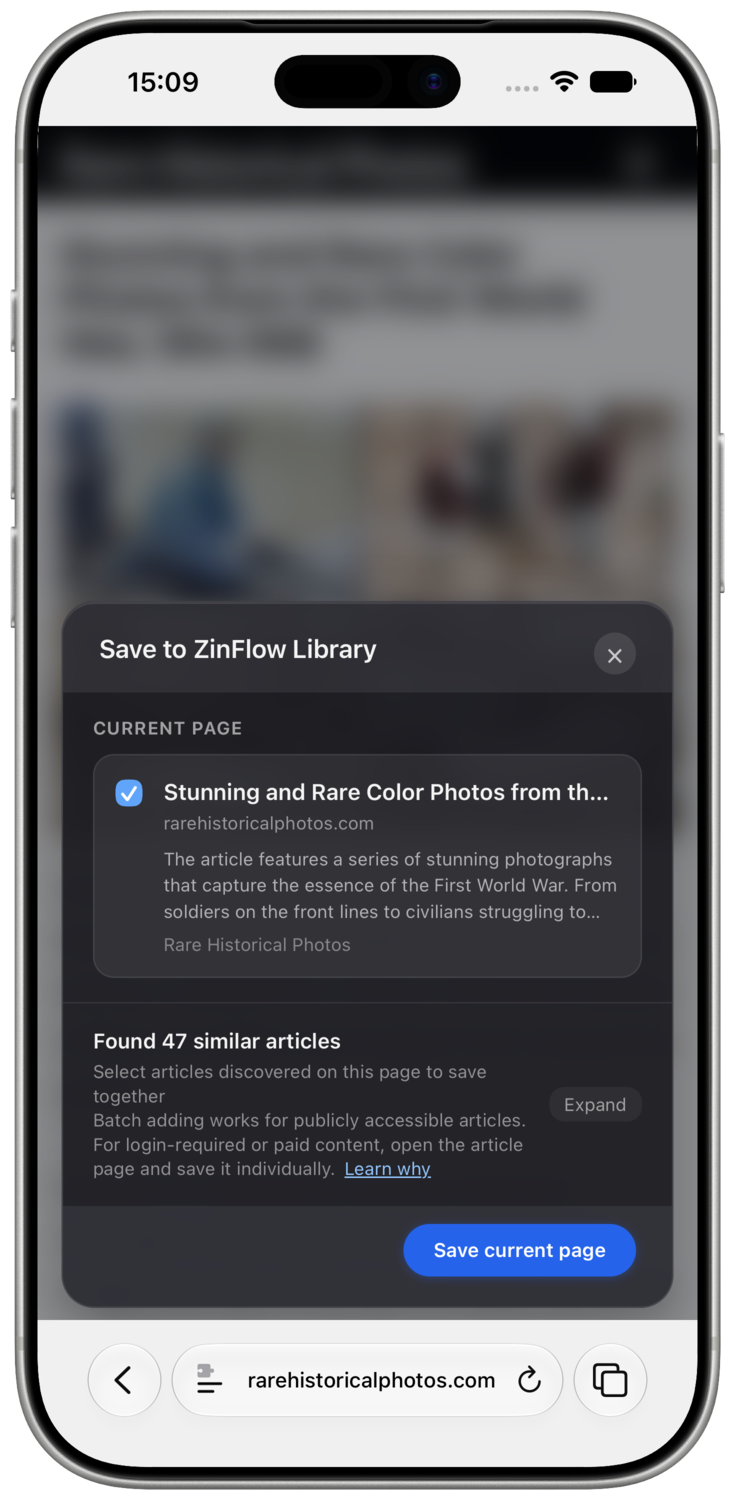 Figure 1: ZinFlow finds other article links on the current Safari page before you choose what to save.
Step 3: Expand the List and Select Articles
Tap Expand to review the discovered articles. Select only the stories you want to keep, or use Select all and Deselect all to adjust a longer list more quickly.
With the Safari extension, ZinFlow checks whether each URL is already in your library. Articles that have already been saved, archived, or cannot be handled are identified in the list so you can focus on the remaining items. The button at the bottom updates to show how many articles will be saved.
Note: The duplicate check is only available in the Safari extension (on iPhone, iPad, and Mac). The Chrome extension does not have it — and Chrome extensions only work on desktop; there are no Chrome extensions on phones.
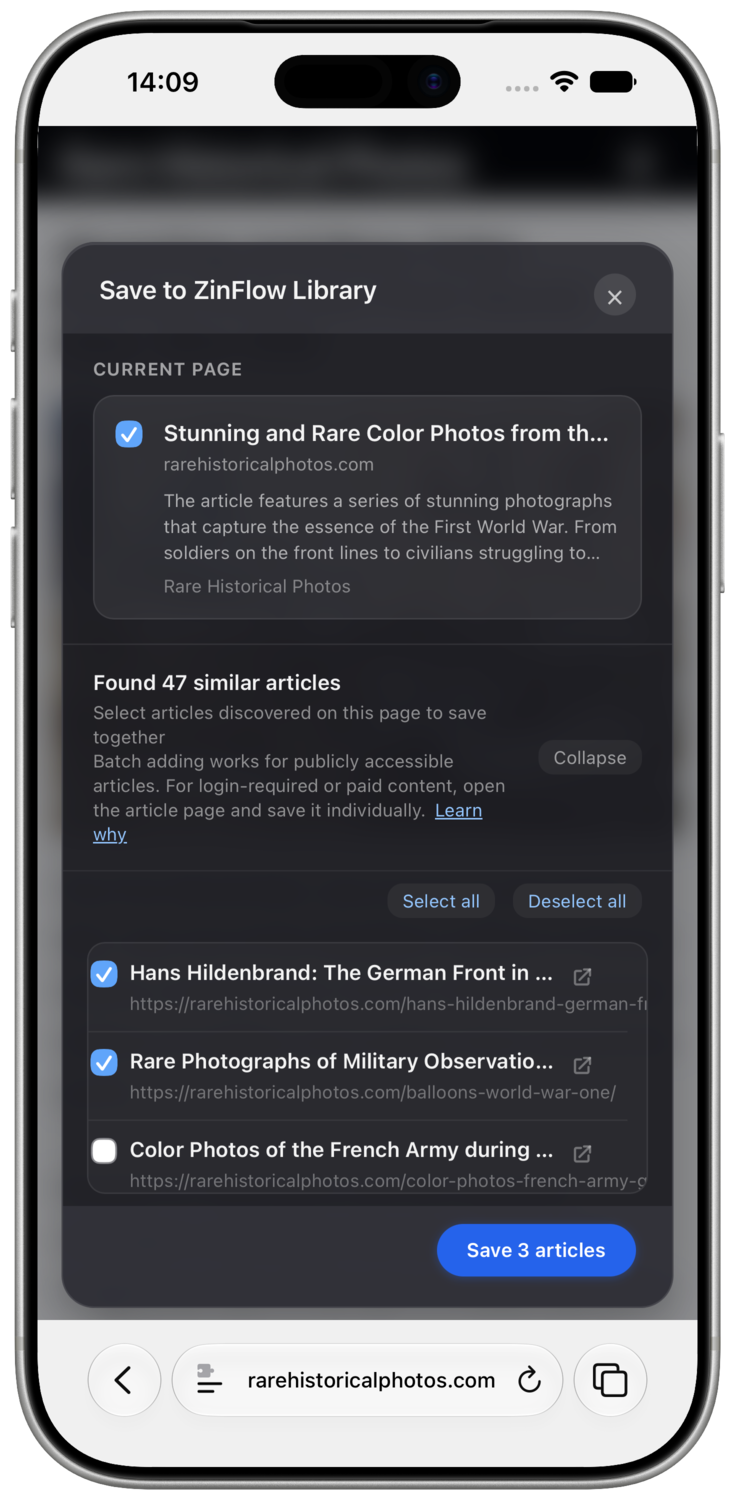 Figure 2: Expand the list, choose the articles you want, and confirm the total shown on the save button.
Step 4: Start the Batch Save and Wait for Processing
Tap the save button and keep the Safari page open while ZinFlow processes the selected articles. The panel shows progress for the whole batch and the status of individual items.
Some websites limit repeated requests. When that happens, ZinFlow slows the batch down and continues after the waiting period shown in the panel. If any items remain unfinished, use the available retry action instead of starting the entire batch again.
Which Articles Can Be Batch-Saved?
Batch saving is designed for publicly accessible articles that can be opened without signing in. It does not bypass a website’s login, membership, or payment requirements.
For paid or login-required content, open each article in Safari while signed in and save it individually with the ZinFlow extension. This lets ZinFlow use the page content available in your current browser session.
What to Do After Saving
The saved articles appear in your ZinFlow library, where you can read, search, favorite, archive, and organize them. When you want a portable reading collection, follow the guide to merging multiple articles into an EPUB.
Frequently Asked Questions
Why doesn’t the panel show any similar articles?
The current page may not contain recognizable links to other articles, or those links may load only after you scroll. Let the page finish loading, scroll through the relevant section, and open the ZinFlow extension again.
Why can’t I select some of the discovered articles?
An item may already be in your library, may use an invalid or unsupported URL, or ZinFlow may be temporarily unable to check its library status. The status shown beside the item explains what happened.
Does this also work on iPad?
Yes. The workflow is the same in Safari on iPad, although the extension panel uses the wider iPad layout.
Can I batch-save paid or members-only articles?
No. Batch saving is limited to public URLs. Open protected articles individually while signed in, then use the browser extension to save the content available in that Safari session.
Ready to Build Your Digital Library?
Download ZinFlow today and start converting your favorite articles into beautifully formatted e-books.