
ZinFlow Chapter Editing Guide: Fine-Tune Your EPUB Table of Contents
Get ZinFlow
Save web pages as e-books on iPhone, iPad, and Mac


After converting web articles into an EPUB e-book, the table of contents structure directly shapes your reading experience. When merging multiple articles, the system automatically groups them by source, but you often need finer control: adjusting the sequence, fixing unclear titles, or trimming redundant entries.
ZinFlow’s Chapter Editor is designed for precisely this purpose. It gives you the freedom to fine-tune your e-book’s table of contents before export, just like editing a document.
Step 1: Enter the Chapter Editor
After selecting multiple articles from your Library and tapping Export > EPUB, ZinFlow automatically generates a temporary table of contents based on your selections and opens the Chapter Editor in a full-screen view. If your articles come from different web sources, the system groups them by source — each source becomes a Chapter (📖), and the articles under it become Sections.
The Chapter Editor is a dedicated full-screen editing page where you can freely restructure your table of contents. Tap Next (→) when you’re satisfied to proceed with the export.
 Figure 1: The Chapter Editor opens automatically when exporting as EPUB
Step 2: Interface Overview
Once inside the editor, you’ll see:
- Navigation bar: Cancel button on the left (discards changes and returns to Library), “Chapter Editing” title centered, and the action menu (⋯) with a Next (→) button on the right
- Main list: Chapters (📖 icon) and indented sections (≡ drag handle) arranged in alternating order, forming a complete table of contents
- Bottom tip: On your first visit, a helpful guide appears at the bottom of the screen
Step 3: Restructure Your Chapters
The Chapter Editor provides a complete set of tools for controlling your book structure, from the macro level down to individual sections.
Chapter-Level Operations
Each chapter header has a ⋯ menu on the right. Tap it to reveal the following options:
| Action | Description |
|---|---|
| Rename | Change the chapter title to better match its content |
| Move Up | Shift the chapter upward in the list (disabled for the first chapter) |
| Move Down | Shift the chapter downward in the list (disabled for the last chapter) |
| Reverse Sections | Reverse the order of all sections within this chapter (only available when multiple sections exist) |
| Delete Chapter | Remove the chapter and all its sections (only available if at least one section would remain after deletion) |
Unlike sections — which can be freely dragged — chapter positions are adjusted one step at a time using the Move Up / Move Down menu options.
Real-world use cases:
- Adjust reading progression: Move a “Fundamentals” chapter above “Advanced Techniques” for a more natural learning curve.
- Reverse sections: If a series was saved from oldest to newest but you want to read from the latest article first, simply tap “Reverse Sections.”
- Delete redundant chapters: Accidentally selected an entire group of articles? Use “Delete Chapter” to remove them in one go.
 Figure 2: Tap the ⋯ menu on each chapter to rename, move, or delete
Section-Level Operations
Within each chapter, you can fine-tune individual sections in two ways:
Swipe to Reveal Actions
Swipe left on any section row to reveal two action buttons:
- Blue Rename button (✎) — Tap to rename the section
- Red Delete button (🗑) — Tap to remove the section (at least one section must remain in the book)
Drag to Reorder
Press and hold the ≡ drag handle on the left side of a section, then drag up or down to rearrange its position within the chapter. Drag-and-drop is limited to within the same chapter.
 Figure 3: Swipe left on a section to reveal Rename and Delete buttons, or drag the ≡ handle to reorder
Step 4: Global Toolbar Operations
The right side of the navigation bar provides two global tools (on iPhone they are grouped in a ⋯ menu; on iPad they appear as inline buttons):
| Action | Description |
|---|---|
| Add Chapter(+) | Insert a new blank chapter at the end of the chapter list |
| Reverse Chapters(⇅) | Reverse the order of all chapters — complements the per-chapter “Reverse Sections” (available when there are at least 2 chapters) |
When to add a new chapter: You might want to create a completely new section to group related content. For example, add an “Appendix” chapter to collect reference materials or supplementary notes.
Step 5: Renaming Walkthrough
Whether renaming a chapter or a section, tapping the Rename action brings up a bottom Sheet form designed for smooth input:
- Auto-focus: The text field automatically gains focus — start typing immediately without an extra tap
- Character limit: Titles are capped at 120 characters; excess text is truncated to keep your table of contents clean
- Live counter: The footer shows how many characters remain (“X characters remaining”)
- Keyboard shortcut: Press the Return key to save instantly — no need to reach for a button
- Empty title protection: The Save button is automatically disabled when the title is blank, preventing nameless entries
- Cancel → Save: Tap Cancel in the top-left to discard changes, or Save in the top-right to confirm
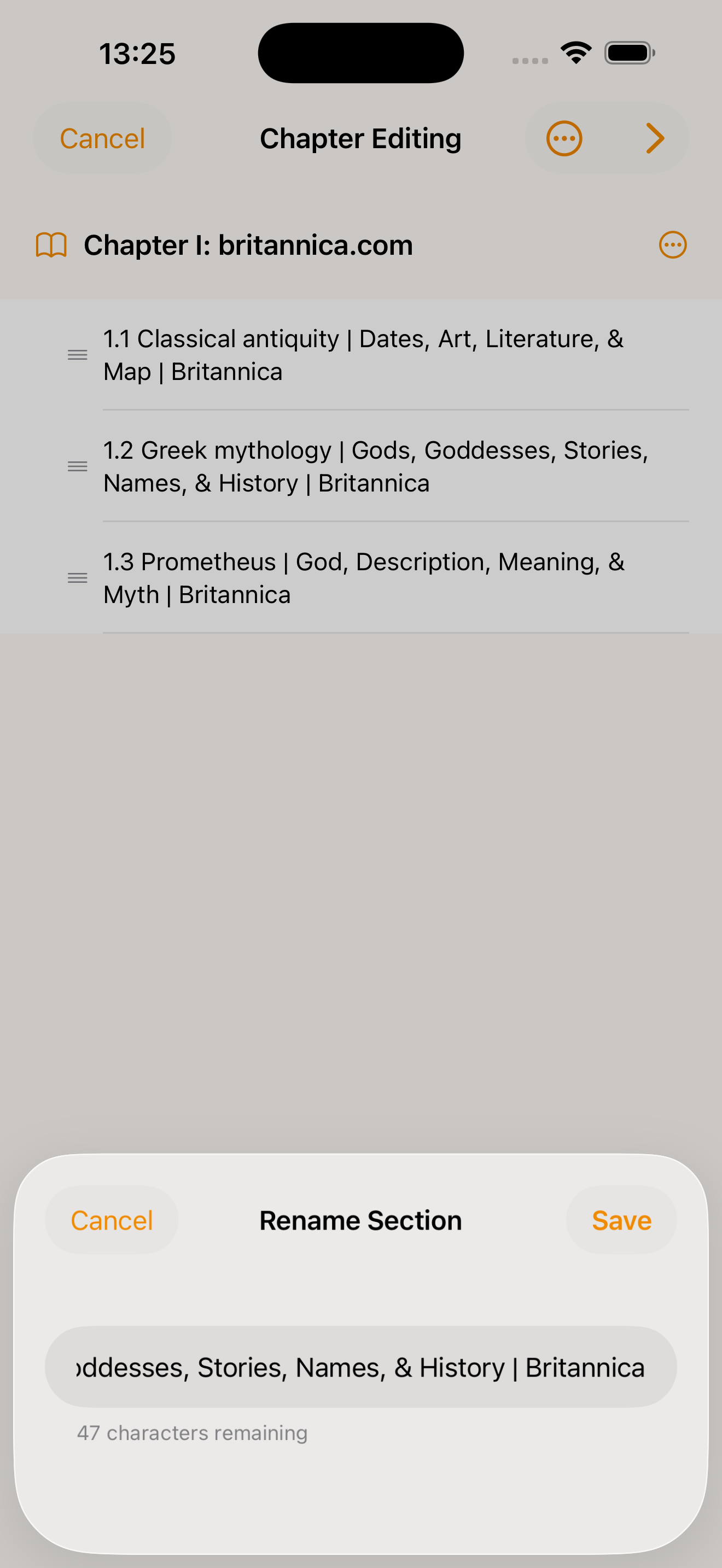 Figure 4: The bottom Sheet form makes renaming quick and intuitive
Tips & Best Practices
- Plan ahead: Before diving into editing, sketch out your book’s overall structure — how many major parts, and which articles belong where. A bird’s-eye view makes the editing process much more efficient.
- Delete first, sort later: Remove redundant content first, then arrange the remaining chapters. This avoids wasting effort on material you’ll delete anyway.
Data Safety
All editing operations only affect the current export session — your original Library articles remain untouched. There’s no risk of accidental data loss. Changes are only applied to the final EPUB file after you tap Next to confirm.
Try It Now
Give the Chapter Editor a try on your next export! Freely combine, rename, and restructure to make every e-book uniquely yours.
- Download Now: Download ZinFlow on the App Store
- Learn More: Back to ZinFlow Home
Platform Differences
This guide is written based on the ZinFlow iOS version. The macOS version of the Chapter Editor has slight differences in interaction details:
- Entry point: On iOS, the Chapter Editor opens automatically when you select articles in the Library and tap Export > EPUB. The macOS version has a different entry flow and window layout.
- Interaction: The iOS version’s swipe actions and drag-and-drop reordering are optimized for touchscreens. The macOS version uses mouse and keyboard interactions, with slightly different interaction logic.
- Toolbar layout: The iOS toolbar adapts to a compact layout (some controls hidden in the action menu). The macOS version has a larger window and adjusts the toolbar accordingly.
The feature logic and editing capabilities remain the same across both platforms.
Ready to Build Your Digital Library?
Download ZinFlow today and start converting your favorite articles into beautifully formatted e-books.