
ZinFlow EPUB Export Guide: Replace Cover, Edit Metadata & Export to Kindle
Get ZinFlow
Save web pages as e-books on iPhone, iPad, and Mac


After converting a web article (or merging multiple articles from your Library), ZinFlow presents a final preview and editing screen where you can fine-tune the EPUB cover, book metadata, and export options before saving or sharing it.
This guide walks you through every option on that screen — from replacing the EPUB cover image to editing title, author, language, and publisher metadata, and finally exporting your customized e-book to files or Kindle.
Step 1: Access the Final Export Screen
The EPUB export editing screen appears automatically after conversion completes. There are two ways to get there:
- Single Article Export: After converting a single article, you’ll land on the export editing screen.
- Library Batch Export: After selecting multiple articles from your Library, organizing chapters, and confirming the order, the batch conversion runs and you’ll land on the export editing screen.
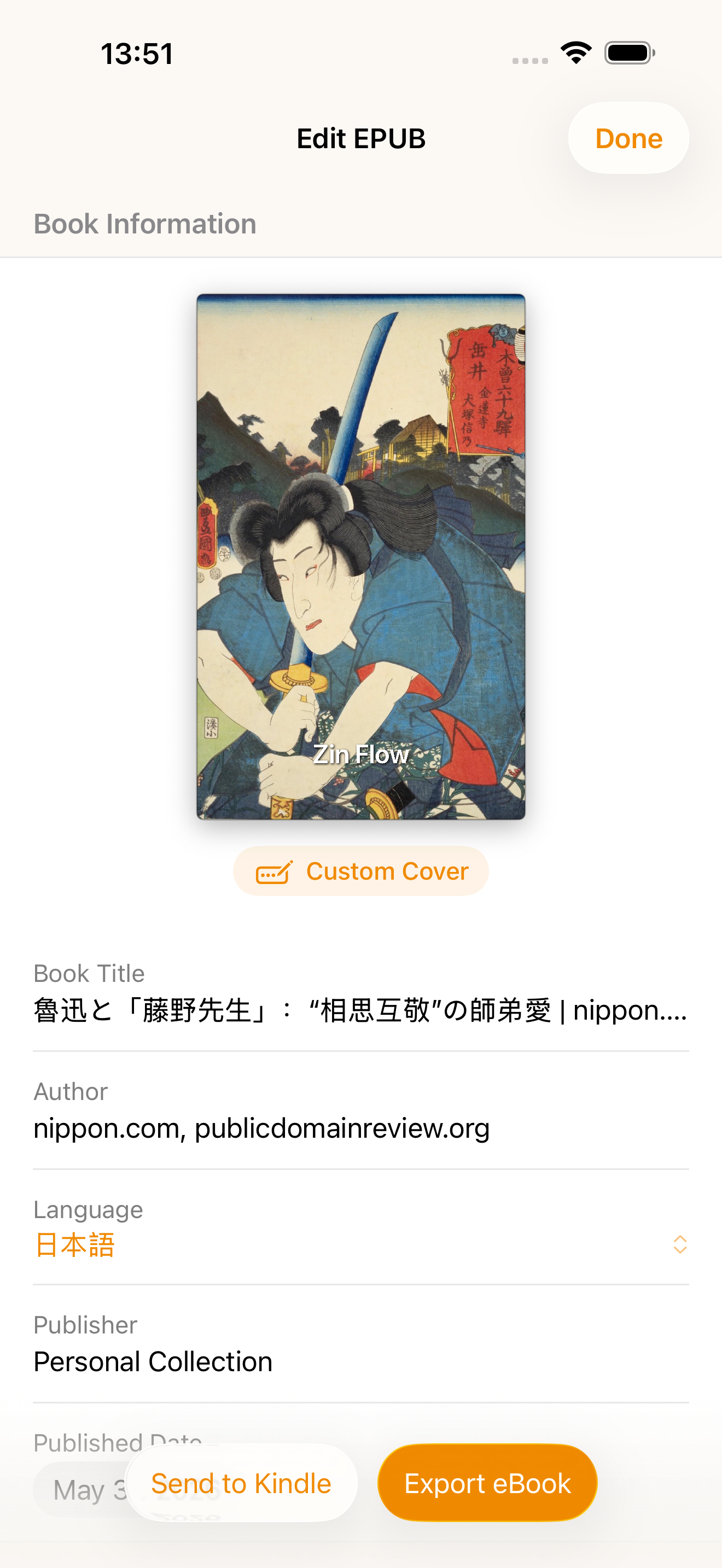 Figure 1: The EPUB export editing screen showing cover preview, metadata fields, and export actions
Step 2: Preview and Replace the EPUB Cover
The cover preview is displayed prominently at the top of the screen. Customizing your EPUB cover is one of the most impactful ways to personalize your e-book.
Viewing the Cover
- If an image was automatically selected from your articles, it appears with rounded corners and a subtle shadow.
- If no suitable article image was found, ZinFlow generates a beautiful solid-color cover instead.
Replacing the EPUB Cover
Tap or click the “Custom Cover” button below the cover preview to see your options:
Option A: From Article Images
- ZinFlow scans all images in the selected article(s) and presents them in a thumbnail grid.
- Tap an image to preview it, then tap Confirm to set it as the new EPUB cover.
- This option is greyed out when no images are found in your articles.
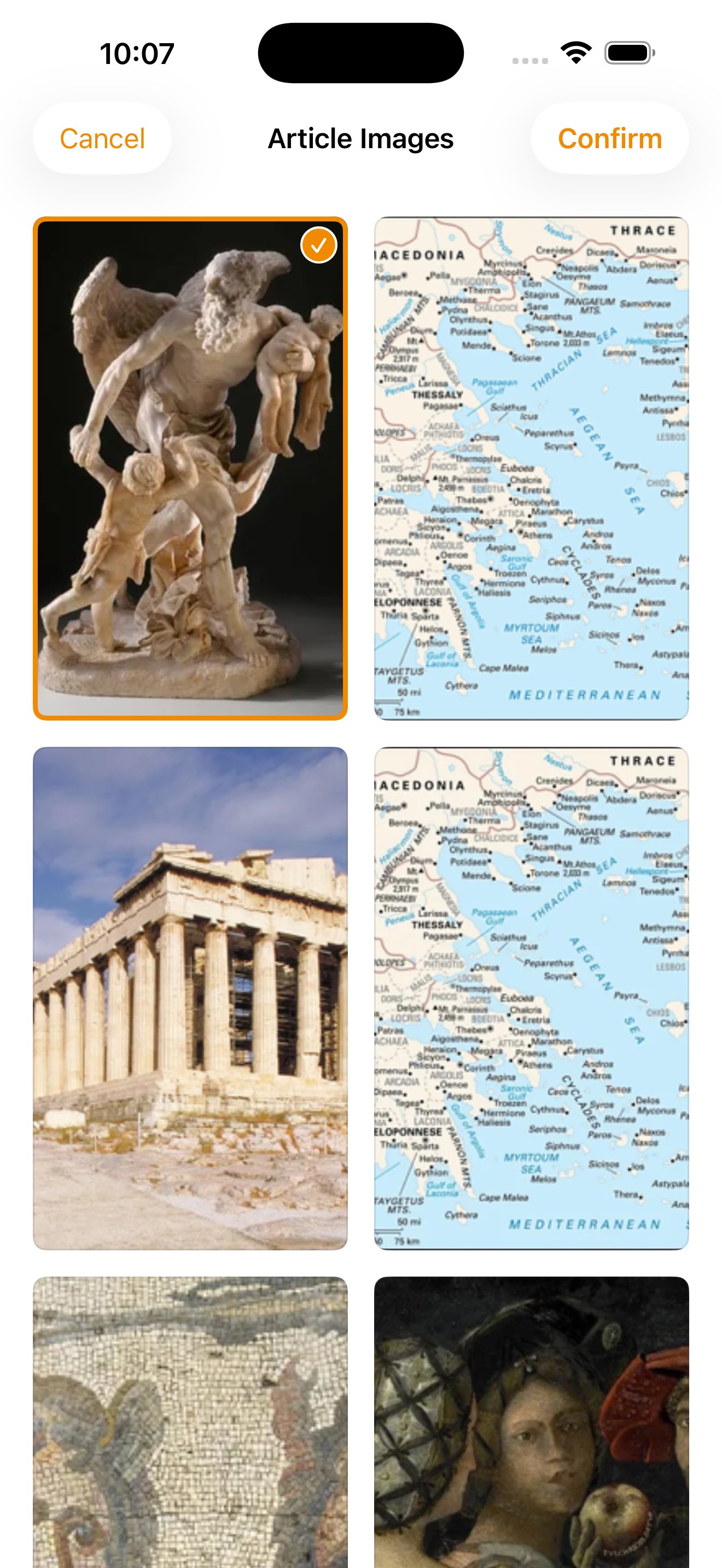 Figure 2: Select from automatically scanned article images as your EPUB cover
Option B: From Photos (iOS only)
- Pick an image from your photo library.
- It’s instantly applied as the new cover.
Option C: From Files
- Choose an image file from your device.
- Works on both iOS and macOS (labeled “Choose File…” on Mac).
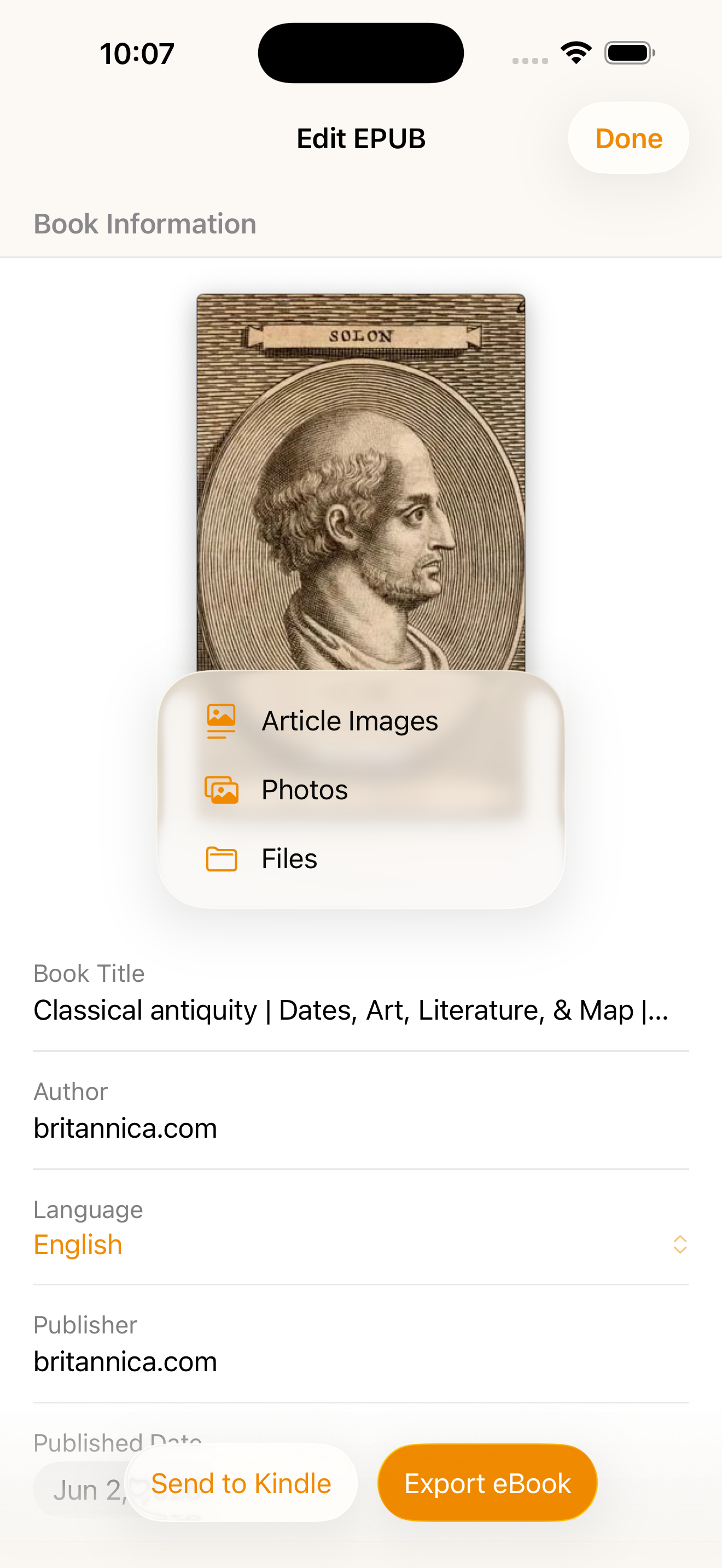 Figure 3: Tap “Custom Cover” to choose from article images, your photo library, or files
Tip: When you change the EPUB cover, ZinFlow automatically regenerates the book in the background. The Export and Send to Kindle buttons remain disabled during regeneration — just wait a moment for it to complete.
Step 3: Edit EPUB Metadata
Below the cover preview, you’ll find the editable book information fields:
Title
- Enter or edit the book title.
- The new title will appear in your e-book reader and file information.
Author
- Enter the author name.
Language
- A dropdown picker with common language options:
- 简体中文 (Simplified Chinese), 繁體中文 (Traditional Chinese), English, 日本語 (Japanese), Deutsch (German), Français (French), Español (Spanish), Italiano (Italian), Português (Portuguese), Tiếng Việt (Vietnamese).
- If your article’s language isn’t listed, the original language is kept as-is.
Publisher
- Enter the publisher name.
Publication Date
- A date picker for setting the publication date.
- Defaults to today if not previously set.
Note: All metadata fields trigger an automatic EPUB regeneration when modified, just like replacing the cover does.
Read-Only Information
Below the editable fields, you’ll find additional EPUB file information for reference:
| Field | Description |
|---|---|
| File Size | The estimated size of the final EPUB file. |
| Modified Date | The last modification date of the source content. |
| Source URLs | Links to the original web article(s) — tap to view. Shows “N/A” if unavailable. |
| Source Sites | Names of the websites where articles were sourced — tap to view. Shows “N/A” if unavailable. |
On iOS, “Source URLs” and “Source Sites” navigate to dedicated detail pages. On macOS, they open as popover panels with clickable links.
Step 4: Choose Your Export Action
Once your EPUB cover and book info are set, you can proceed with the final export:
Export eBook (iOS) / Save EPUB (macOS)
- iOS: Tapping this button ensures the EPUB is up-to-date, then opens the system Share Sheet where you can save to Files, AirDrop to another device, or share to any compatible app.
- macOS: Opens a save dialog to choose where to save the EPUB file on your Mac. The Share button (square-and-arrow-up icon) in the toolbar opens the native sharing service.
Send to Kindle
- Sends the EPUB as an email attachment to your Kindle address for wireless delivery.
- Requirements: File must be under 25 MB, and a mail account must be set up on your device.
Done (Close)
- Closes the export editing screen.
- If you enabled “Archive article after action” (available in Library batch export mode), articles are automatically moved to the archive after successful export.
- All temporary files are cleaned up when leaving the screen.
iOS vs macOS: Key Differences at a Glance
| Feature | iOS | macOS |
|---|---|---|
| Cover Source: Photos | ✅ Supported | ❌ Not available |
| Cover Source: Files | ✅ Supported | ✅ Supported |
Cover Watermark (Pro Feature)
By default, ZinFlow adds a subtle “Zin Flow” watermark to the bottom of the EPUB cover for non-Pro users:
- The watermark is auto-colored (dark text on light backgrounds, light text on dark backgrounds) for optimal readability.
- It includes a slight shadow for contrast against complex cover images.
To remove the EPUB cover watermark, enable “Remove Cover Watermark” in ZinFlow’s settings (requires ZinFlow Pro).
Behind the Scenes: How the EPUB Cover Is Automatically Selected
When you merge multiple articles, ZinFlow’s cover selection algorithm intelligently picks the best EPUB cover image for you:
- Filtering: Images that are too small or corrupted are removed.
- Quality Check: Only images of reasonable size are kept.
- Smart Ranking: The algorithm scores each EPUB cover candidate on:
- Aspect Ratio Match (60%) — how close it is to the ideal EPUB cover ratio (1600×2560).
- Size Adequacy (30%) — whether it meets or exceeds the target dimensions.
- Pixel Quality (10%) — total pixel count.
- Result: The highest-scoring image is placed first as the recommended EPUB cover. You can always override this selection using the Custom Cover menu.
Try It Now
Export an article today and use the EPUB editing screen to add a personal touch — replace the cover, set the right title and author, and send your customized e-book to Kindle or save it for offline reading.
- Download: Download ZinFlow on the App Store
- Learn More: Back to ZinFlow Home · Library Export Guide · Chapter Editing Guide
Ready to Build Your Digital Library?
Download ZinFlow today and start converting your favorite articles into beautifully formatted e-books.